.png)

.webp)
Key Takeaways
- GA4 doesn't auto-classify AI traffic. Sessions from ChatGPT, Perplexity, and Claude land in Referral, Direct, or Unassigned unless you build custom channel groups and regex filters.
- GA4 Explore + regex is your fastest starting point. Apply a regex filter on Session source/medium to isolate AI referrers within minutes.
- Custom events via GTM capture on-site AI interactions. Track chatbot clicks, AI-assisted navigation, and embedded LLM widget engagement with dedicated event parameters.
- Looker Studio turns raw data into trend lines. Connect your GA4 property, pull in custom AI segments, and visualize traffic volume, engagement, and conversions over time.
- Specialized tools close the visibility gap. SE Ranking, Otterly.ai, and LLMrefs track brand mentions inside AI-generated responses, something GA4 cannot do.
- Self-reported attribution catches dark traffic. Add a "How did you find us?" field to signup and contact forms, listing AI tools as options. As an AI-native SaaS marketing agency, TripleDart Digital helps B2B SaaS brands build these tracking systems from scratch, configuring GA4, GTM, and Looker Studio so every AI-driven session is measured and attributed correctly.
Google still commands around 90% of global search market share. But a growing chunk of website visits now starts inside an LLM. ChatGPT, Perplexity, Gemini, Claude, Copilot... they're all sending real users to real pages.
And GA4 has no default label for any of them.
That means your reports are already wrong. AI-referred sessions get dumped into Direct, Referral, or Unassigned, and you lose visibility into a channel that 63% of websites already receive traffic from. If you can't track AI traffic in GA4, you can't attribute it, optimize for it, or prove its value to anyone holding a budget.
In this guide, we walk through how to identify, tag, filter, and report on AI and LLM chatbot traffic inside GA4. Step by step, with regex patterns, GTM configurations, Looker Studio dashboards, and the specialized tools that fill GA4's blind spots.
What Is AI Traffic in GA4?
AI traffic is any website visit that originates from a generative AI assistant or language model interface. ChatGPT, Perplexity, Bing Copilot, Claude, Google Gemini, Meta AI, or dozens of smaller tools.
ChatGPT alone drives 50% of all AI referrals, and just three chatbots account for 98% of AI-driven visits. On average, AI chatbots represent 0.17% of total traffic. But that share climbs higher for smaller sites and high-intent B2B pages.
AI traffic enters your site through three primary paths:
- Visible referral links from AI bots or branded agents like chat.openai.com or perplexity.ai.
- Embedded LLM chatbots placed directly on your website that drive internal navigation.
- API-driven bots that fetch live data from your pages as part of a response, often without passing a referrer header.
Here's the problem. GA4 does not natively recognize any of these as "AI traffic." Sessions get bucketed into Direct, Referral, or Unassigned, making it impossible to measure the channel without manual configuration.
Agency Insight
The biggest measurement gap we see is not missed clicks. It's misclassified sessions. AI traffic is frequently absorbed into referral, direct, or unassigned buckets, which makes trend analysis noisy unless teams standardize a dedicated AI grouping and review it alongside session source/medium. In practice, the channel definition matters more than the regex itself, because inconsistent grouping is what prevents comparable reporting across accounts.
Why Track AI and LLM Chatbot Traffic?
Without accurate tracking, you risk underreporting performance and misjudging which touchpoints influence discovery and conversion. Here's what's at stake.
User behavior is moving. People now use Meta AI, ChatGPT, and even TikTok to search, compare products, and make buying decisions. As discovery spreads across platforms, your SEO strategy must adapt to follow user intent across every entry point.
Attribution breaks down. AI tools often summarize content without passing a backlink or referring domain. That weakens traditional strategies like SaaS link building, where attribution plays a direct role in ranking and authority.
Keyword strategy gets harder. The rise of prompt-based discovery changes how people phrase their needs. This complicates SaaS keyword research and affects how you plan and map content across funnels.
GA4's default channel groupings hide AI sessions. You may see them incorrectly grouped under Direct, Referral, or Unassigned. Some AI tools strip referrer data entirely, while others use vague or misleading domains. GA4 also fails to surface LLM query context or chatbot triggers in event data.
You need to ask new questions: Which AI interactions bring traffic? Which sessions convert? How do these journeys compare to organic search or paid social?
That's why Generative Engine Optimization is becoming essential for SaaS brands navigating AI-first discovery. And you need to track the impact of Google AI Overviews on your organic traffic to protect visibility.
This Reddit thread captures the frustration many marketers feel when they first try to track AI traffic:
GA4 is hiding AI referral traffic: here's how to fix it
byu/Seo_Jeong-hoon inGoogleAnalytics
Case Study - Helpshift
"Helpshift achieved a 35% increase in tracking AI-driven user interactions after implementing GA4."
Read the full Helpshift case study →
How to Set Up AI Traffic Tracking in GA4
GA4 doesn't natively recognize or label traffic from AI tools. You have to create your own system for tagging, collecting, and reporting that data. That means customizing your reporting setup with filters, events, dimensions, and visualizations that specifically track AI-related activity.
Here's how to do it across three methods.
1. Using GA4 Explore Reports
Start with GA4's Explore section to surface potential AI referrers and unusual traffic patterns. This method helps you find baseline indicators without creating new tracking infrastructure.
Step #1: Open GA4 and Launch a Free-Form Exploration
Go to the Explore tab inside your GA4 account. Select Free Form as the exploration type. This layout provides flexibility to combine dimensions and metrics for in-depth analysis.
Step #2: Add Dimensions
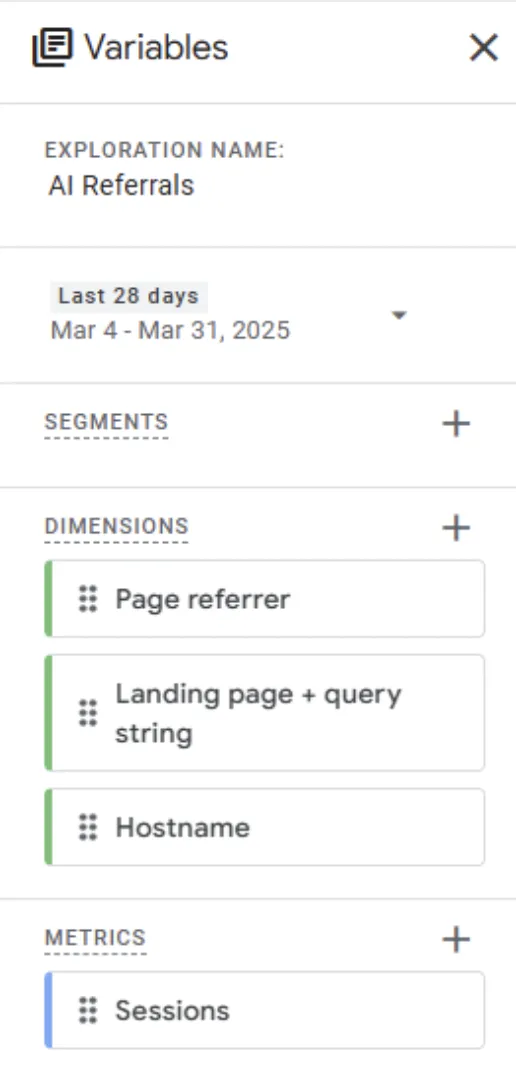
Click the plus icon next to Dimensions and import the following:
- Session source/medium
- Page referrer
- Landing page
In the Metrics section, click the plus icon again and choose Sessions to display how many visits each source drives. Based on your goals, you can also add extra metrics and dimensions:
- Engagement rate helps you measure how visitors interact with the page.
- Events shows how many conversions or key actions come from AI traffic.
- Date and time reveals when your site receives the most AI-driven visits.
After choosing your variables, double-click each name or drag them into the free-form section on the right. GA4 will generate a table with your selected data, but at this stage, it still shows all referral traffic, just like a standard report.
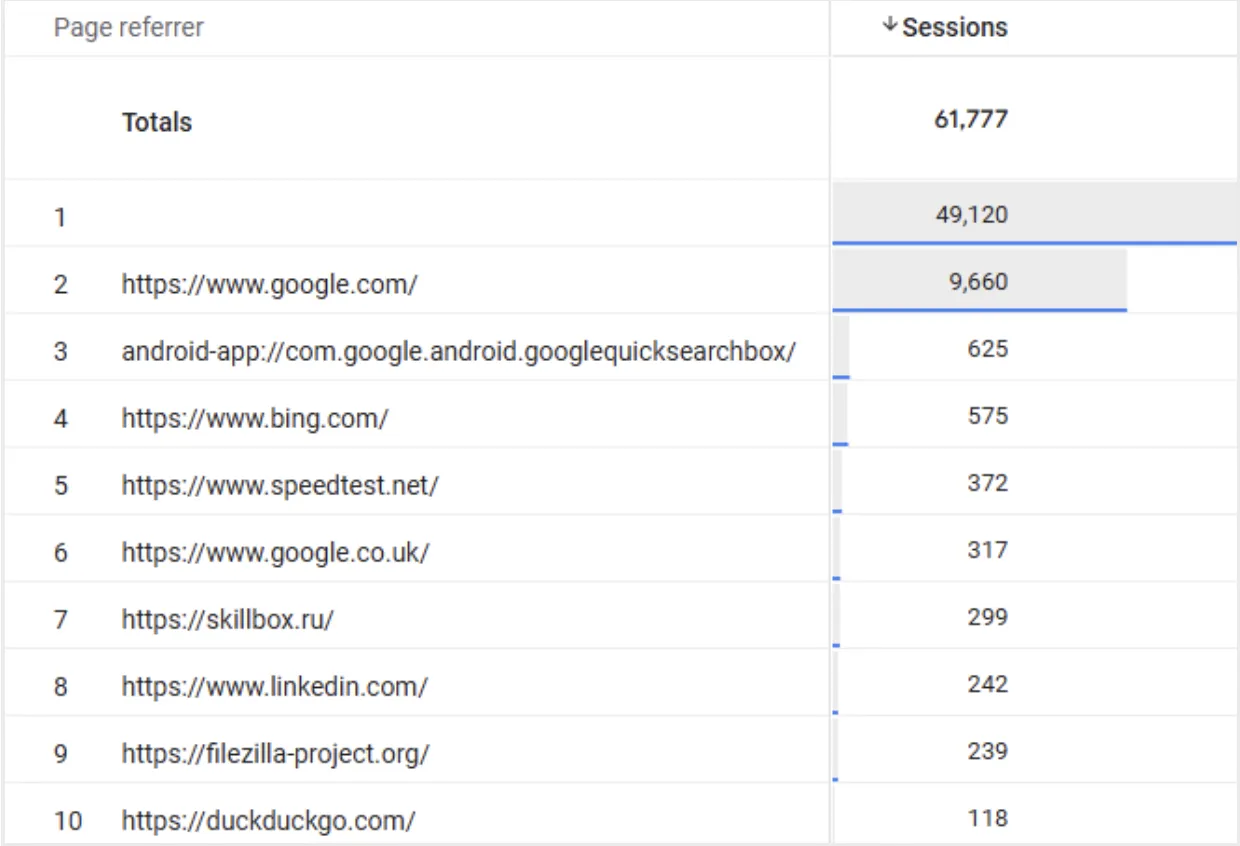
Step #3: Use Regex Formulas
Apply a filter to the Session source/medium dimension to isolate chatbot traffic. Use a regex string like:
(chat\.openai|gemini\.google|copilot\.microsoft)
If you want broader coverage, add more domains known for AI referrals, such as:
(chat\.openai|gemini\.google|copilot\.microsoft|perplexity\.ai|meta\.ai)
This filter narrows the view to sessions likely triggered by chatbot interactions. From here, you can analyze landing pages, traffic volume, and engagement tied to AI-driven visits.
2. Creating Custom Events and Dimensions
If you want more control over how GA4 captures AI chatbot interactions, you can create custom events and dimensions. This way, you can track user actions that don’t appear in default reports, such as link clicks generated by chatbots or AI-assisted navigation.
Using Google Tag Manager (GTM)
Step #1: Set up a trigger to detect link clicks
Start by setting up a trigger in GTM that detects link clicks related to AI chatbot interactions.
There are two types of click triggers in Google Tag Manager: All elements and Just links. As the names suggest, the All elements trigger tracks clicks on any element (link, image, button, etc.), while the Just links trigger tracks clicks on links only.
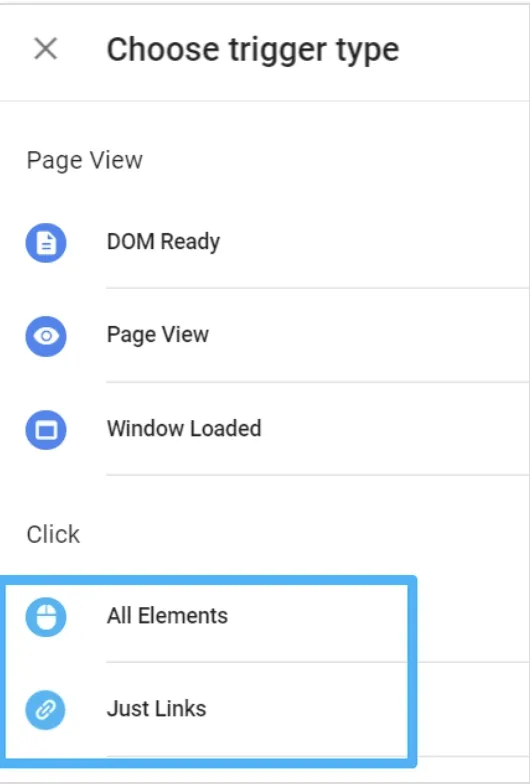
Choose the “Click – Just Links” trigger type, and use conditions like URL patterns or CSS selectors to narrow the scope.
Step #2: Configure a Tag to Send a Custom Event
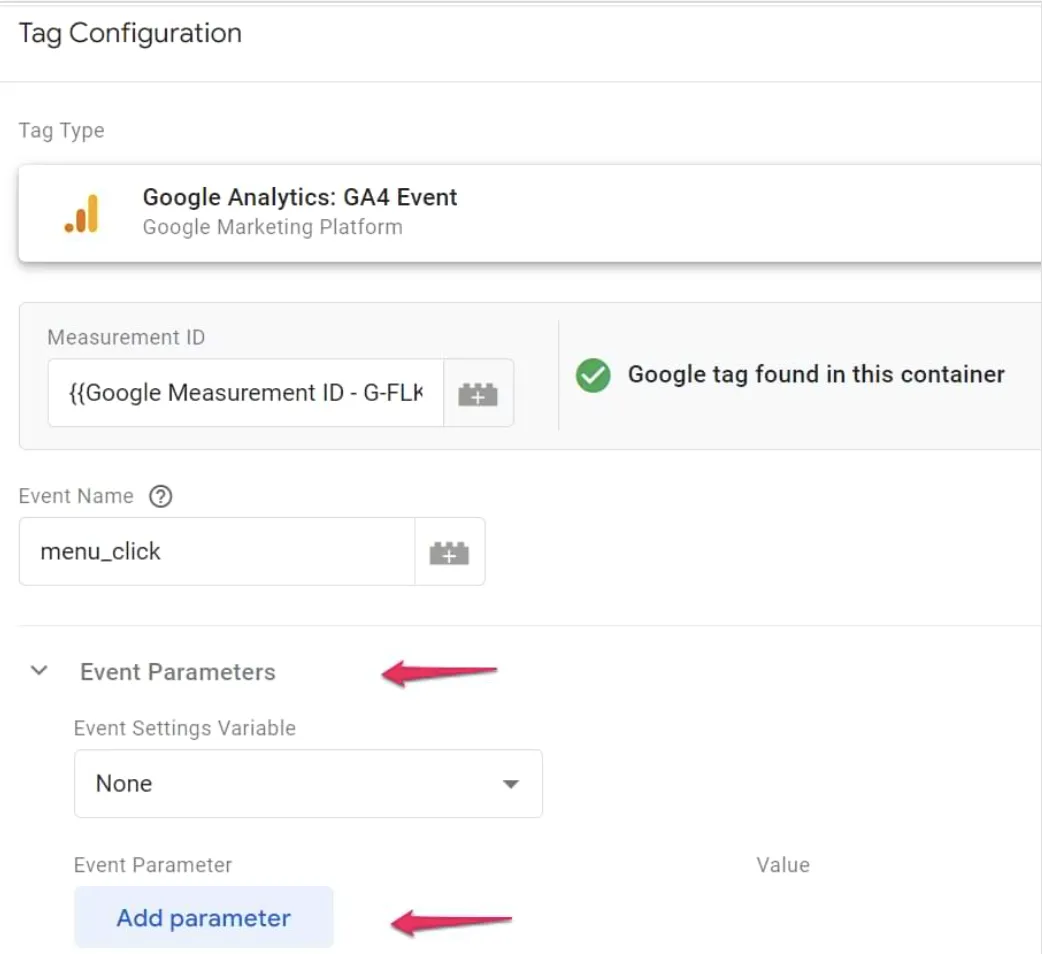
Next, configure a tag that sends a custom event to GA4 when the trigger fires. You should:
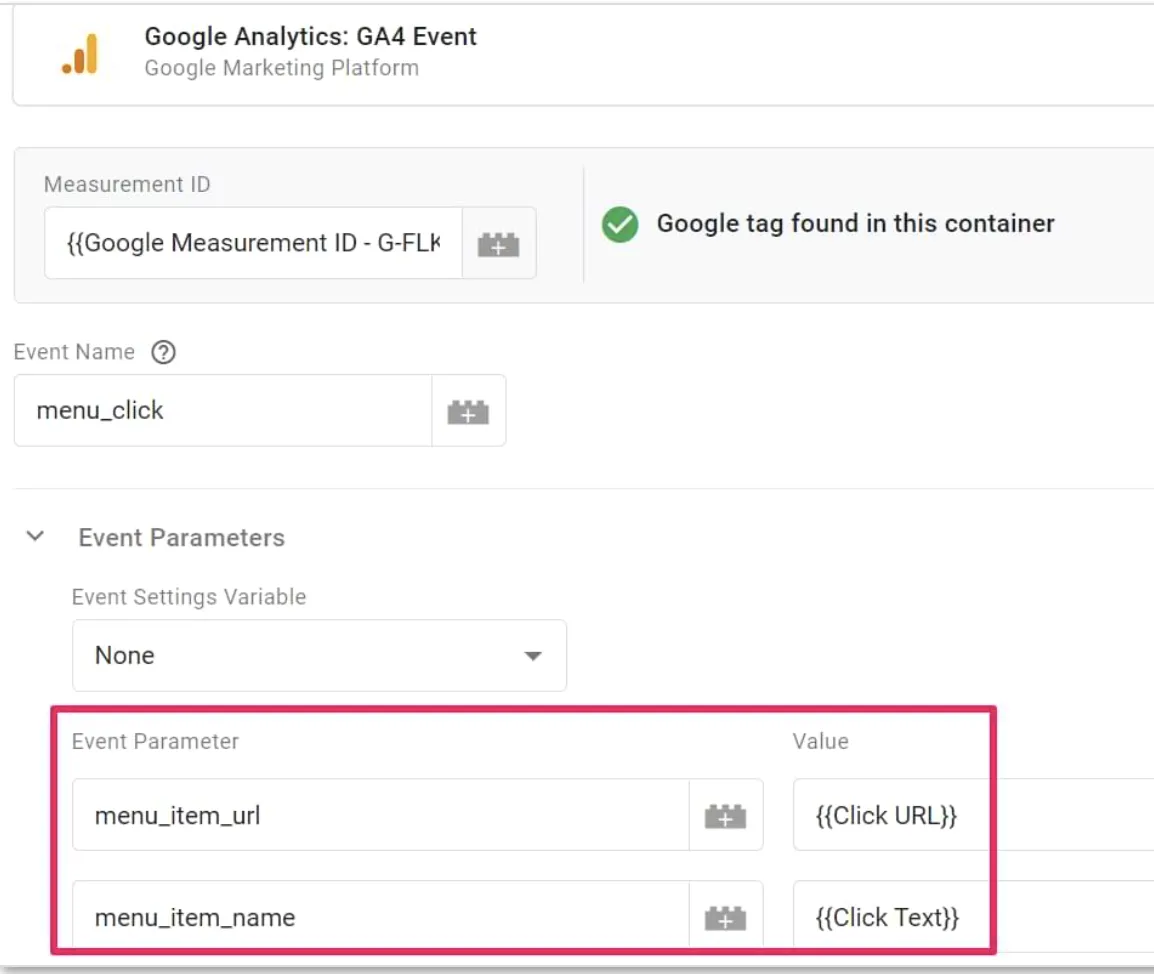
- Create a new tag in GTM and choose Google Analytics: GA4 Event as the tag type.
- Name the event something specific, like ai_chatbot_click, to clearly identify the chatbot interaction.
- Add relevant parameters, such as menu_item_url and menu_item_name, to capture additional context about the interaction. These parameters will help provide insights into the specific AI-driven actions users take.
Step #3: Test the Tag
Before publishing, use GTM’s Preview Mode to test your tag:
- Verify that the tag fires correctly when an AI chatbot interaction occurs.
- Check that the event is correctly triggered and that the data is being sent to GA4 as expected.
Once confirmed, publish the tag to make it live.
Step #4: Register Custom Parameters
After the tag is working properly, register the parameters (e.g., menu_item_url, menu_item_name) as Custom Dimensions in GA4. Follow these steps:
- Navigate to Admin > Custom Definitions in GA4.
- Register each parameter to make it available for detailed reporting.
This step allows you to break down chatbot-driven activity and track specific interactions across your site.
Direct GA4 Configuration
Step #1: Navigate to Events in GA4
Open your GA4 property and go to the Events section under Configure in the left-hand menu. Click on Create Event to set up a new custom event dedicated to tracking AI chatbot interactions,
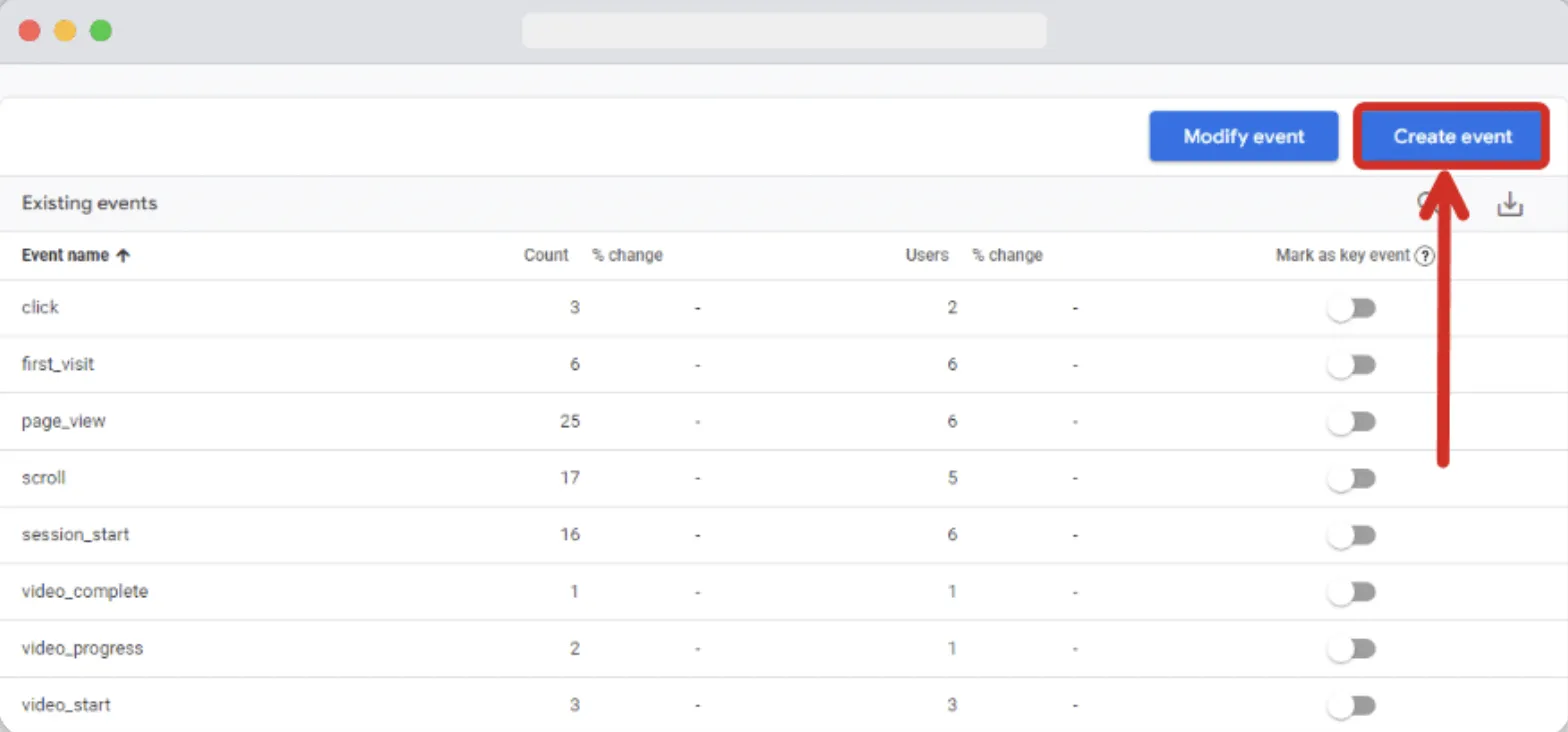
Step #2: Create a New Event for AI Chatbot Interactions
Once in the Create Event screen, define the new event for AI chatbot activity:
- Name the event to make it clear that it's related to chatbot activity.
- Set up conditions based on the triggers for AI interactions, such as specific button clicks or URL patterns associated with the chatbot. These conditions ensure the event is recorded only when a user engages with the AI chatbot.
Step #3: Define Parameters to Capture Relevant Data Points
To add more context to the event, define parameters that capture key details about each AI interaction.
For instance, parameters such as menu_item_url and menu_item_name will help you track exactly what the user engaged with on the chatbot interface. These parameters allow you to gather specific insights into how the chatbot is being used and what actions are driving user engagement.
Step #4: Register Parameters
After defining your custom event and its parameters, register the parameters as Custom Dimensions for detailed reporting.
In GA4, go to Admin > Custom Definitions and add each parameter (like menu_item_url or menu_item_name) as a new custom dimension.
This step ensures that you can segment and analyze chatbot interactions within your GA4 reports, allowing you to track user behavior and make data-driven decisions based on specific AI chatbot interactions.
Now, you have a fully configured system for tracking AI chatbot interactions directly within GA4, without needing to use Google Tag Manager.
3. Reporting with Looker Studio
To get a clear view of these trends, create custom reports and explorations in GA4, as outlined in the earlier sections. Once you’ve isolated AI traffic with segments or dimensions, bring that data into Looker Studio for more flexible and visual analysis.
Start by opening Looker Studio and creating a new report.
- Click Add Data, then select your GA4 Property.
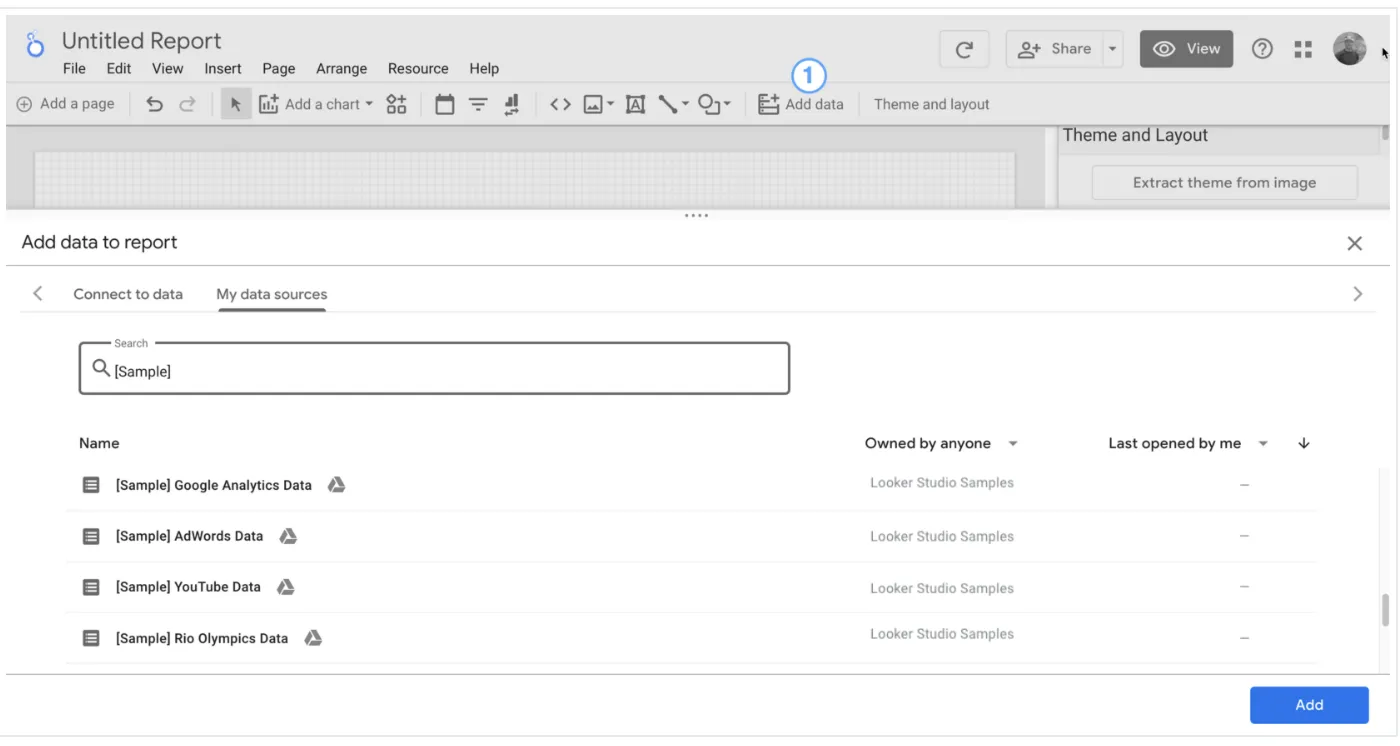
- Once connected, click Edit Connection and choose Refresh Fields to pull in the latest custom dimensions or event parameters.
After refreshing, add your Custom AI Traffic Segment to the report:
- Use line charts to show how AI traffic evolves over time.
- Compare it against total sessions, conversions, or engagement to understand its role in the overall journey.
Looker Studio gives you more control over how you visualize and communicate the impact of AI referrals across your site. Working with a Marketing Analytics Agency can help you interpret these AI traffic patterns accurately and turn insights into data-backed decisions.
How to Identify and Filter Bot Traffic in GA4
To track meaningful data in GA4, you must separate AI bot traffic from scraping bots and obvious spam. AI bots often simulate human interaction patterns, while scrapers and spam bots trigger irrelevant sessions and inflate metrics.
Identifying Bot Traffic in GA4
GA4's automatic exclusion filters out traffic from known bots and spiders, but this list doesn't catch everything.
Internal traffic filters. Define internal traffic filters to exclude specific IP ranges used by bots or internal tools. Go to Admin > Data Streams, select your data stream, click "Configure tag settings," then "Define internal traffic."
Custom segments for reporting. Build custom segments to exclude bot-like sessions when analyzing key metrics. This helps you view clean performance data.
Referral Exclusion List. Apply the Referral Exclusion List to remove spammy or ghost domains that show up as referrers but never deliver engaged traffic.
Filtering Bot Traffic in GA4
Now, to remove bot traffic, you can create custom segments or filters to isolate and remove specific types of traffic based on IP addresses, user agents, or other criteria.
1. GA4’s Automatic Exclusion
GA4 automatically filters out traffic from known bots and spiders, but this list doesn’t catch everything.
2. Internal Traffic Filters
Define internal traffic filters to exclude specific IP ranges used by bots or internal tools that shouldn’t appear in your reports.
3. Custom Segments for Reporting
Build custom segments to exclude bot-like sessions when analyzing key metrics. This helps you view clean performance data.
4. Update Data Stream Settings
Go to Admin > Data Streams and click your property. Use “Configure tag settings” to define rules for internal traffic using parameters like IP addresses or hostnames.
5. Referral Exclusion List
Apply the Referral Exclusion List to remove spammy or ghost domains that show up as referrers but never deliver engaged traffic.
Diving Deeper into AI Traffic Insights
Once you isolate AI traffic in GA4, you need to focus on specific metrics that reveal behavior and value.
You can start with these metrics:
- Average engagement time
- Scroll depth
- Session duration
These numbers tell you how long AI visitors interact with content and where they stop engaging.
Next, measure conversion rates across goals and micro-conversions to understand how AI traffic affects actual outcomes. Watch for events triggered without final actions, as they often indicate partial or automated sessions. Track these across different journeys to spot which ones fail to convert or mimic human actions.
Compare all metrics against your human traffic benchmarks to find gaps, spikes, or unnatural consistency. To observe how behavior changes over time, switch your exploration view to a Line Chart.
Here’s how:
- Click your existing AI Traffic tab, switch the visualization style to Line Chart.
- Break it down by Session Source/Medium.
- Add metrics like Sessions, Engagement Rate, or Conversions to the Values section to complete the chart.
Set the date range to 90 days and granularity to week so trends appear clearly across time.
Agency Insight
Across our B2B SaaS accounts, AI-referred sessions are still a small share of total traffic, but they're disproportionately concentrated in lower-funnel pages like pricing, product, and comparison content. That pattern suggests AI is acting less like a broad awareness channel and more like a high-intent research layer. Tracking should prioritize page-level attribution and downstream conversions rather than top-line sessions alone.
What Deeper Insights Can You Extract from AI Traffic Data?
Once you isolate AI traffic in GA4, focus on specific metrics that reveal behavior and value.
Measure engagement quality. Track average engagement time, scroll depth, and session duration. These numbers tell you how long AI visitors interact with content and where they stop engaging. According to an Ahrefs study, AI visitors tend to visit fewer pages and bounce more often than traditional search visitors. But a Microsoft Clarity analysis found that AI traffic converts at up to 3x the rate of other channels in certain verticals.
Fewer pages, higher conversion. That's a pattern worth understanding.
Compare against human benchmarks. Measure conversion rates across goals and micro-conversions. Watch for events triggered without final actions; they often indicate partial or automated sessions. Compare all metrics against your organic traffic benchmarks to find gaps, spikes, or unnatural consistency.
Identify which landing pages AI surfaces. This is where the real strategic value lives. If AI tools consistently send users to your pricing page or a specific comparison article, that tells you which content to optimize for clearer intent match, stronger internal paths, and more explicit conversion prompts.
Visualize trends over time. Switch your exploration view to a Line Chart:
- Click your existing AI Traffic tab, switch the visualization style to Line Chart.
- Break it down by Session Source/Medium.
- Add metrics like Sessions, Engagement Rate, or Conversions to the Values section.
Set the date range to 90 days and granularity to week so trends appear clearly across time.
Track AI Overview traffic separately. Differentiate AI overview clicks from organic in GA4 by monitoring Google Search Console for increased impressions without corresponding click increases. Tools like Semrush can show which keywords trigger AI Overviews where your content may be featured. For a step-by-step guide, check our guide on how to rank in AI Overviews.
Case Study - Fyle
"GA4's enhanced tracking capabilities have transformed our understanding of AI traffic patterns."
Read the full Fyle case study →
How Does TripleDart Help You Master AI Traffic Tracking?
You can't treat AI or LLM-generated visits like normal traffic. Their patterns, triggers, and influence need separate tracking. AI sessions often inflate engagement or trigger false conversions, which skews your reporting. Segment them before they distort real behavior.
GA4 gives you a starting point, but it lacks built-in filters for LLMs or emerging AI tools. That's why you need custom segments, smarter channel grouping, and layered metrics to see clearly.
TripleDart Digital is an AI-native SaaS marketing agency that builds and runs full-funnel inbound GTM engines for B2B Tech and SaaS companies. We act as your extended GTM team, with full accountability for pipeline and revenue results. Our GA4 migration services fine-tune tracking setups that keep up with Google's rapid changes. If you've migrated recently and missed key configurations, our team can rebuild your setup from the ground up.
We help SaaS brands build GA4 exploration reports for LLM traffic, create custom channel groups for AI traffic, and tag AI tools with UTM parameters for clean attribution. With AI SEO tools and reporting dashboards built around behavior patterns, we measure impact, not impressions. Our AI-powered workflows enhance the speed and quality of every tracking configuration, and we track Google's algorithm changes in real time so you see what changed and why.
Don't wait for perfect data. Test, track, compare, and refine based on real user journeys. Ready to future-proof your analytics? Book an intro call today to set up AI traffic tracking and turn unpredictable marketing spend into a predictable pipeline.
FAQs
How do you track AI traffic in GA4?
Create custom events, use regex filters for AI referrers, and build segments in GA4 Explore or Looker Studio to monitor sessions from tools like ChatGPT, Perplexity, or Gemini. Use a regex pattern like (chat\.openai|perplexity\.ai|gemini\.google|claude\.ai|copilot\.microsoft|meta\.ai|deepseek|you\.com) to filter session source/medium and isolate AI-driven visits. For complete coverage, also create a custom channel group called "Artificial Intelligence" in GA4 Admin.
How do you detect bot traffic in GA4?
Check for unusual traffic spikes, zero engagement, or known bot referrers. Use filters, hostname validation, and custom dimensions to isolate suspicious behavior. Look for short session durations, unrealistic page views, or spikes from unlikely geographic regions. For AI crawlers that don't execute JavaScript, analyze server logs with tools like Screaming Frog or Cloudflare.
How do you get traffic from ChatGPT?
Provide clear, valuable content with linkable answers. Structure content with FAQ sections, use markdown formatting, and ensure your pages directly answer common queries. Monitor referrer data to identify traffic from chat.openai.com. For a complete strategy, see our guide on how to rank on ChatGPT.
What tools can track AI and LLM visibility beyond GA4?
SE Ranking, LLMrefs, Otterly.ai, Profound, and Atomic AGI track your brand's presence in AI-generated responses, not referral clicks. These tools show how often LLMs mention your content, compare visibility against competitors, and detect changes in AI citation patterns over time. See our full list of GEO tools for more options.
How do you track AI traffic that shows as "Direct" in GA4?
Some AI tools strip referrer data, causing sessions to appear as Direct or Unassigned. To capture this "dark traffic," add self-reporting survey questions to your contact or signup forms asking users how they discovered you and which AI tool they used. You can also use UTM parameters for AI integrations you control.
How do you know if your content appears in AI Overviews?
Monitor Google Search Console for increased impressions without corresponding click increases; this often indicates your content appears in AI-generated summaries. Tools like Semrush can show which keywords trigger AI Overviews. For tracking within GA4, look for sessions where the landing page matches pages that rank for AI Overview keywords.
How does TripleDart help with AI traffic tracking in GA4?
TripleDart is an AI-native SaaS marketing agency that builds and runs full-funnel inbound GTM engines for B2B Tech and SaaS companies. We configure GA4 custom channel groups, build regex-based AI traffic segments, set up GTM event tracking for chatbot interactions, and create Looker Studio dashboards that visualize AI referral trends alongside conversion data. Our AI-powered workflows enhance the speed and quality of every configuration, and we connect GA4 analytics with specialized AI visibility tools so you get a complete picture of how LLMs drive traffic and pipeline. We've systemized growth for 250+ companies, combining senior marketing expertise with AI workflows that enhance performance across the entire GTM engine. Book a call to get started.



.webp)
.webp)
.png)


.png)



.webp)





.webp)


.webp)






%20(1).png)


.webp)
.webp)
.webp)





%20Ads%20for%20SaaS%202026_%20Types%2C%20Strategies%20%26%20Best%20Practices%20(1).webp)







.png)


.png)





.webp)


![Creating an Enterprise SaaS Marketing Strategy [Based on Industry Insights and Trends in 2026]](https://cdn.prod.website-files.com/632b673b055f4310bdb8637d/6965f37b67d3956f981e65fe_66a22273de11b68303bdd3c7_Creating%2520an%2520Enterprise%2520SaaS%2520Marketing%2520Strategy%2520%255BBased%2520on%2520Industry%2520Insights%2520and%2520Trends%2520in%25202023%255D.png)




.png)















.webp)







%20Agencies%20for%20B2B%20SaaS%20Compared%20(2026).webp)

.webp)
%20with%20Hubspot.webp)






.png)


.png)

.png)
.png)
.png)
.png)
















.webp)

.webp)
.png)
.png)





.png)



















.webp)

![How to Measure AEO Success: 12 Metrics Beyond Clicks [2026 Framework]](https://cdn.prod.website-files.com/632b673b055f4310bdb8637d/6a0d664b326187e99b3d5960_6%20-%20The%20Ultimate%20Guide%20to%20Measuring%20AEO%20Success%20in%202026.png)
![7-Step Workflow for AEO-Ready Content [2026 Framework]](https://cdn.prod.website-files.com/632b673b055f4310bdb8637d/6a0d55ea88913ede1d3a7123_5%20-%20Workflows%20for%20Optimized%20AEO-Ready%20Content%20Creation.png)
.png)

![How to Structure Content for AEO and GEO [With Templates]](https://cdn.prod.website-files.com/632b673b055f4310bdb8637d/6a0c6a56eb700472e635ff33_1%20-%20How%20to%20Structure%20%20Content%20for%20AEO%20and%20GEO%20%20Summaries%20(2026).png)


.png)
.png)








.png)

.png)




%2520Agencies%2520(2025).png)

![Top 9 AI SEO Content Generators for 2026 [Ranked & Reviewed]](https://cdn.prod.website-files.com/632b673b055f4310bdb8637d/6858e2c2d1f91a0c0a48811a_ai%20seo%20content%20generator.webp)


.webp)
.webp)









.webp)